
Login:
- When you login to the VCL, select Reservations, then click the New Reservation button. In the dialog box that opens, locate the desired environment – it will probably have AVD in the name (HINT: type AVD in the box to only show images containing AVD in the name).
- Once the environment is selected, the information in the box will change a little, and you will need to click Connect.
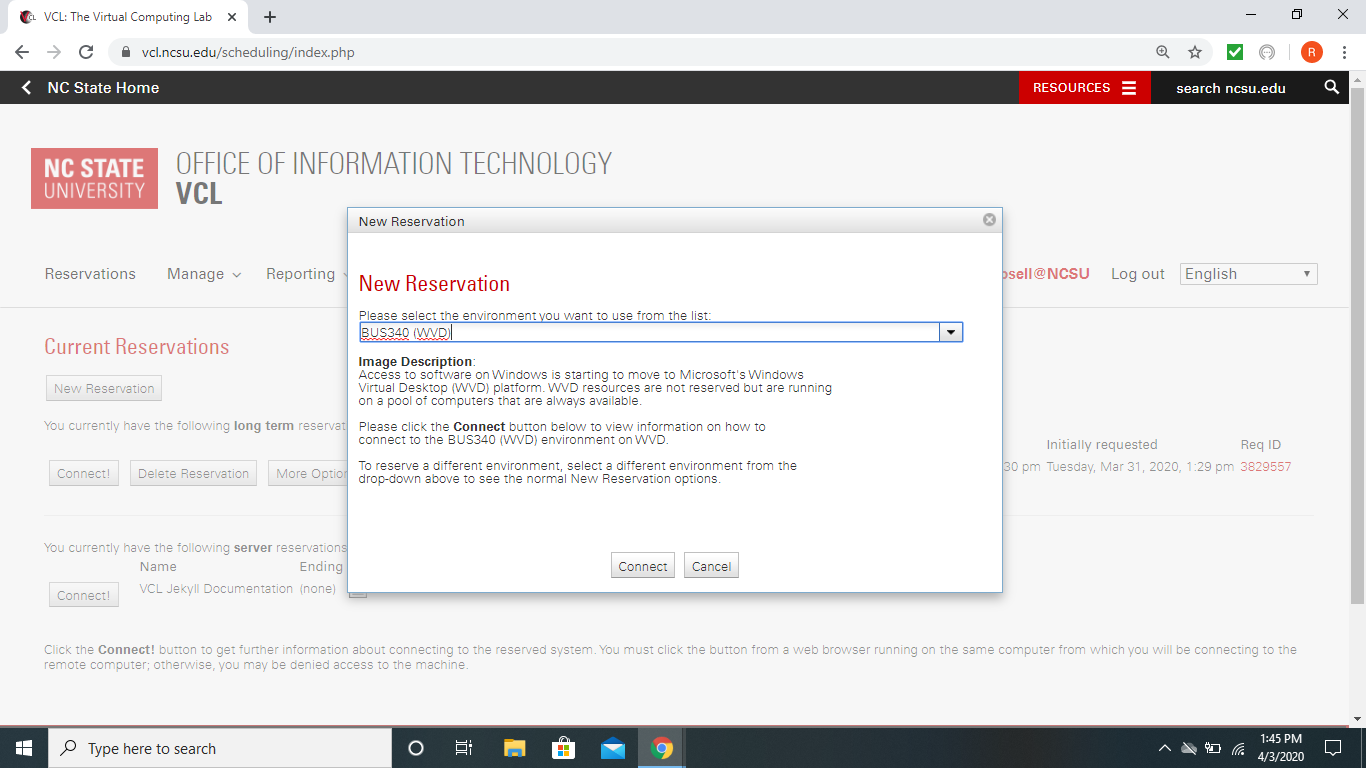
- Once connect button is clicked the dialog box will pop up with instructions on how to proceed with your reservation.
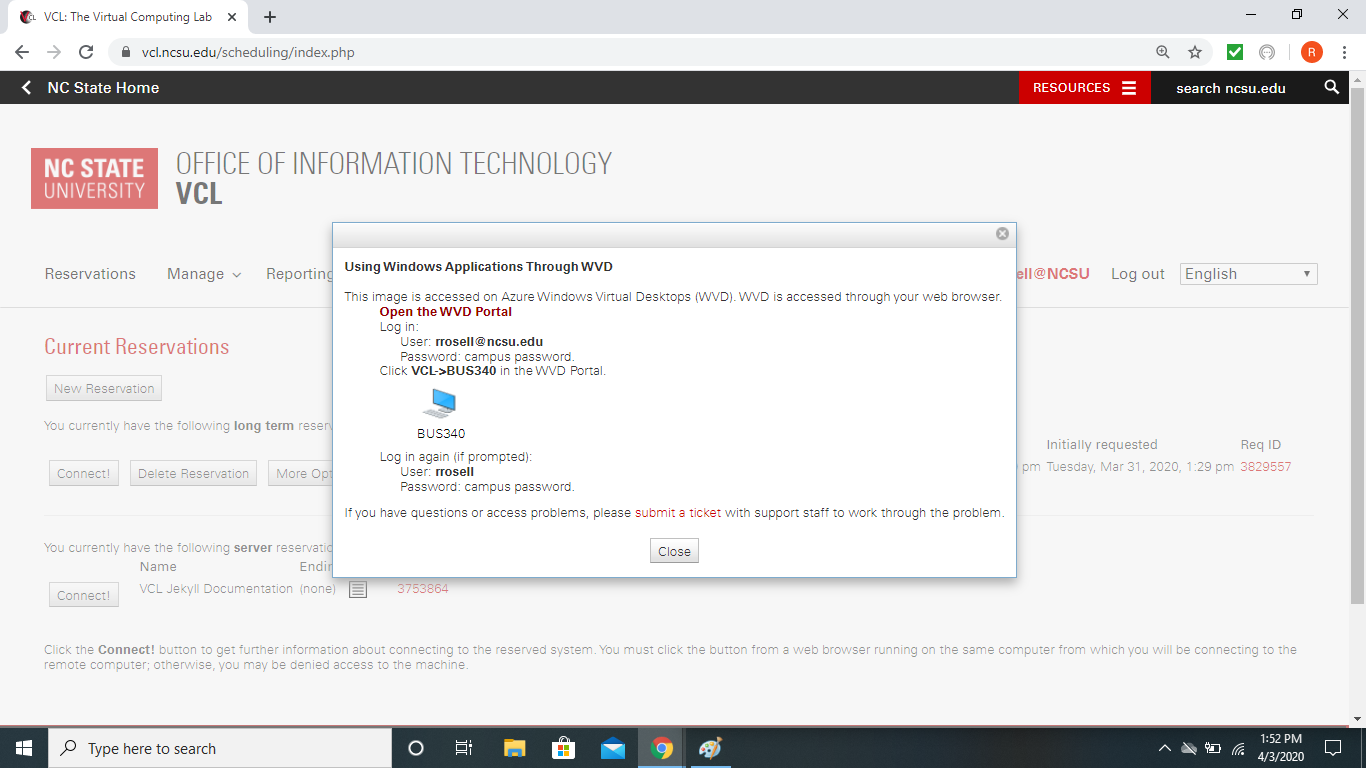
- Click on Open the AVD Portal and a new window will appear asking you to sign in. Logging in here requires username@ncsu.edu (ex: jddoe@ncsu.edu). Password will to be your unity password.
NOTE: It may not prompt for logging in if you have previously logged in.
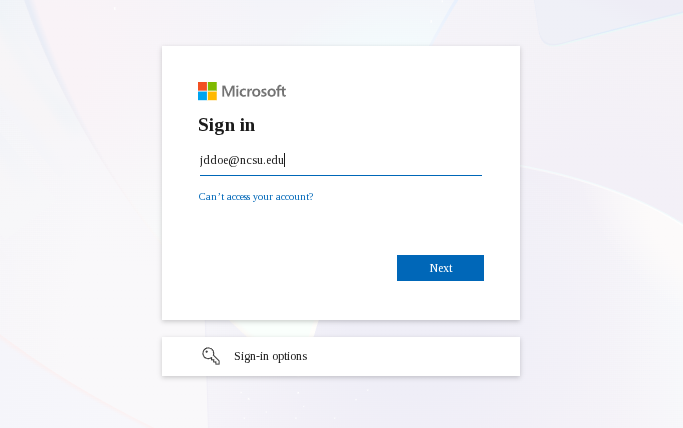
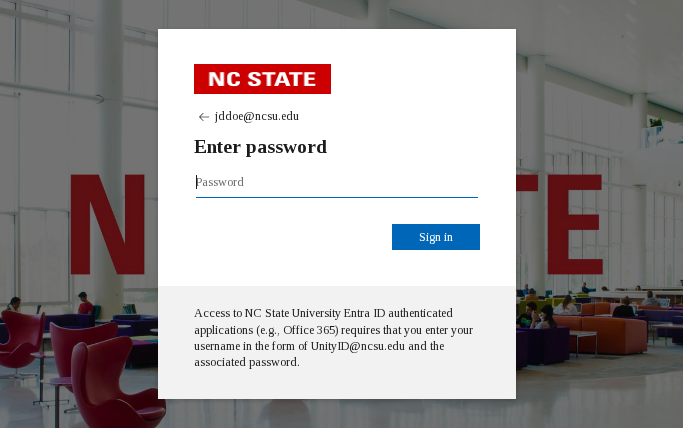
WARNING: If these dialog boxes do not appear with Google Chrome. You may need to proceed with using an incognito window or using another web browser (ex: Internet Explorer, Firefox, Safari, etc…).
You may also be prompted for verification using DUO.

- Once the sign in is successful, a new window will display showing “devices” to which you have access. Click the desired device to proceed.

NOTE: This will not prompt you to log in if you have logged in previously.
- A dialog box for In Session Settings will appear. Accepting the defaults is fine, but adjust as desired.

- After clicking Connect, the site will probably force your browser to full screen. You can press F11 or move your mouse to the top of the screen to make a circle with an X in it appear that you can click to exit full screen. However, you may want to wait until after signing in, because it may force you to full screen again then.
- A new dialog box will appear asking for your credentials. Logging in here can be just your Unity ID or your Unity ID followed by @ncsu.edu ex: jddoe or jddoe@ncsu.edu. (AVD prepopulates your username to include @ncsu.edu). Password is still your unity password.

- Once all prior steps have been followed a remote desktop will be displayed. Again, to exit full screen, you can press F11 or move your mouse to the top of the screen to get a circle with an X in it that you can click to exit full screen. (Also, if you exit full screen at the wrong time, the page just breaks and you have to close the browser tab and try again.).

- To open applications, there may be an icon on the desktop or you may need to click the blue Start menu icon on the taskbar, click All in the top right of the menu, and the scroll to find the application you need.